
This offer is a part of Oracle Cloud Free Tier.
Let’s pause and appreciate how absurd these specs are for a free tier. In a world where AWS and Google Cloud offer you barely 1GB of RAM and a sliver of a shared CPU (which barely runs a basic WordPress site), Oracle gives you a spaceship.
Specifically, this is the Ampere A1 Compute instance. It runs on ARM architecture—the same efficient tech powering Apple’s M-series chips.
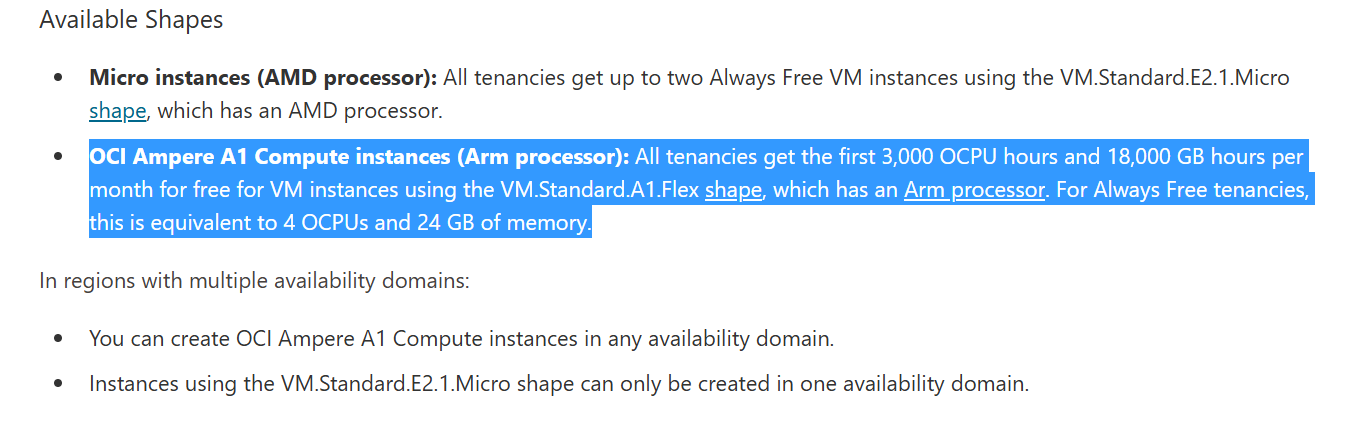
Why is this a game changer? With 4 OCPUs and 24GB of RAM and 200GB Free-Tier Storage, you aren't just limited to hosting a static HTML page. This is enough horsepower to:
- Run Coolify to deploy multiple projects and databases.
- Run a heavy Minecraft Server for you and 20 friends.
- Run 3-4 WordPress websites with medium to heavy traffic.
- Run 100s of Static websites of your own with low to medium traffic.
- Deploy a Kubernetes cluster to learn container orchestration.
- Host a Plex media server to stream your own content.
- Run multiple Docker containers simultaneously without the server crashing.
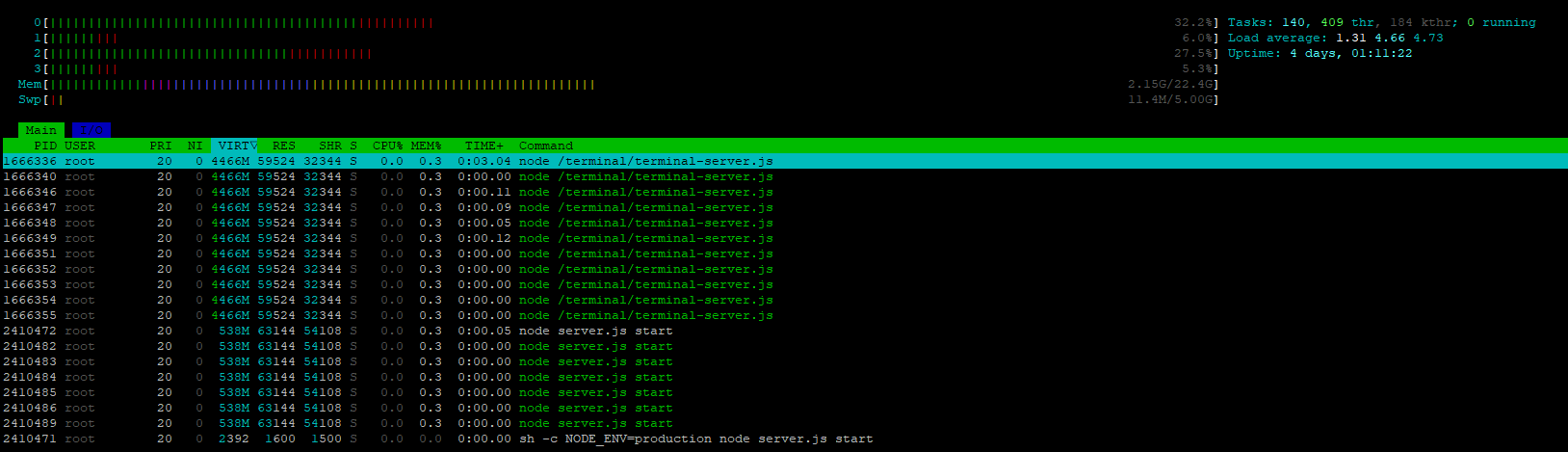
Basically, a powerful server for life that has $0 monthly bill. Here is how to get this deal.
How to Get the Oracle Cloud Hosting for Life?
To get the offer easily and quickly, follow these 4 step formula, else you may encounter various problems. Let's get into it.
Step 1: Register on Oracle Cloud for Free-Tier Account
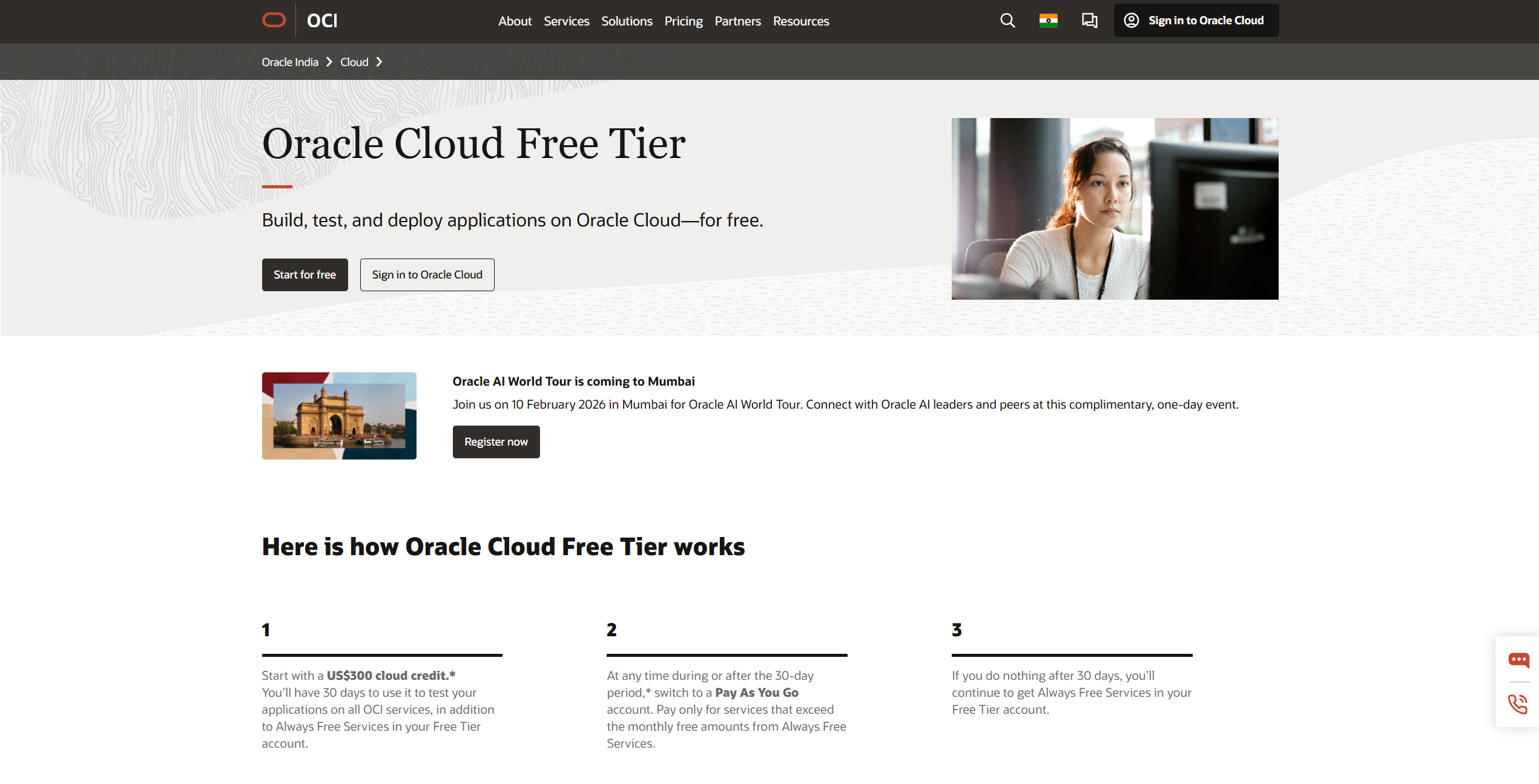
Getting this offer is a bit like signing up for a bank account—they are very strict about security, so follow these steps carefully.
- Go to the Sign-Up Page: Visit the Oracle Free Tier website.
- Start for Free: Click the big button that says "Start for Free."
- Fill in Basics: Enter your real name and email. (Do not use a fake email; they will verify it).
- The "Home Region" (CRITICAL STEP):
- You will be asked to choose a "Home Region." This is the physical building where your computer server will live.
- Warning: You cannot change this later.
- Tip: Pick a location closest to you (e.g., "US East Ashburn" or "Germany Frankfurt") to make your server fast.
- Identity Verification:
- Enter your address and phone number.
- Why? They do this to prove you are a real human, not a robot trying to steal 1,000 servers.
- Wait for the Keys: After you finish, it might take 15 minutes to 24 hours to get an email saying, "Your account is ready." Once you get that, you are in!
Step 2: Set an "Alarm Clock" (Budget Alert)
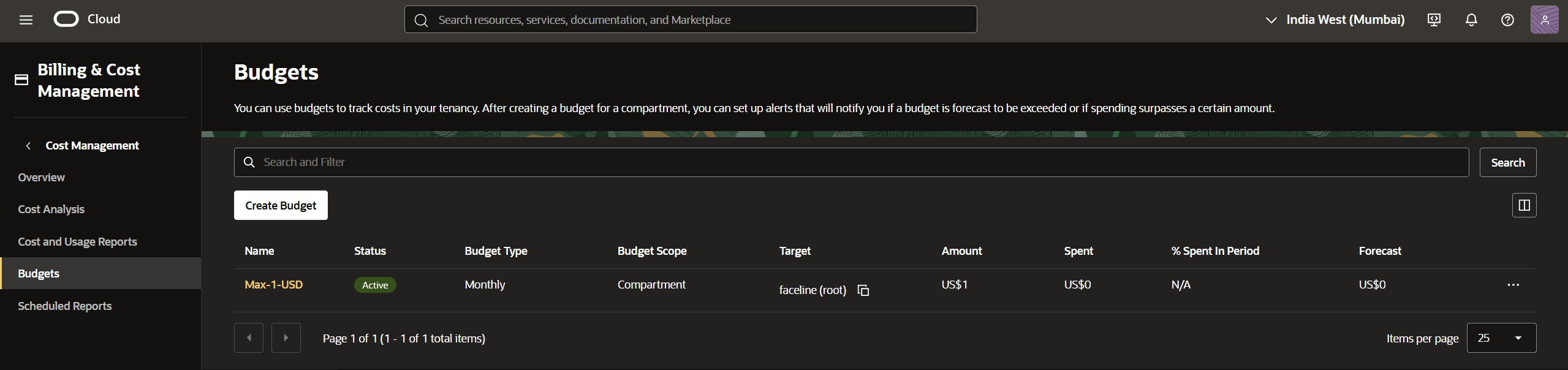
I know that most of us here are students, we don't want anything that breaks our bank. Even though they won't charge you, it is good to know if you are using too many resources. You can set up an email alarm. Here is how you can do it.
- Log in to your Oracle Cloud Dashboard.
- Click the "Hamburger Menu" (the three lines in the top left corner).
- Click on Billing & Cost Management -> Budgets.
- Click Create Budget.
- Name: Call it "My Safety Alarm."
- Amount: Type "1" (This means $1).
- Scroll down to Budget Alert Rule.
- Threshold: Type "100%".
- Email: Type your email address (more is always good).
- What this does: If your account ever tries to use even $1 worth of paid resources, Oracle will immediately email you screaming, "Hey! You're spending money!"
Step 3: Get Free-Forever 4 OCPU & 24GB RAM Instance
By default, Oracle gives you a small "slice" of a computer (1 vCPU, 1 GB RAM). You have to manually ask for the big one. Here is how to swap them:
- Create Instance: Go to your dashboard and click "Create Instance".
- Find "Image and Shape": Scroll down to the section that shows the operating system and processor.
- Click "Change Shape": This is the button to swap the hardware.
- Select "Ampere": You will see options like AMD, Intel, and Ampere. Click Ampere.
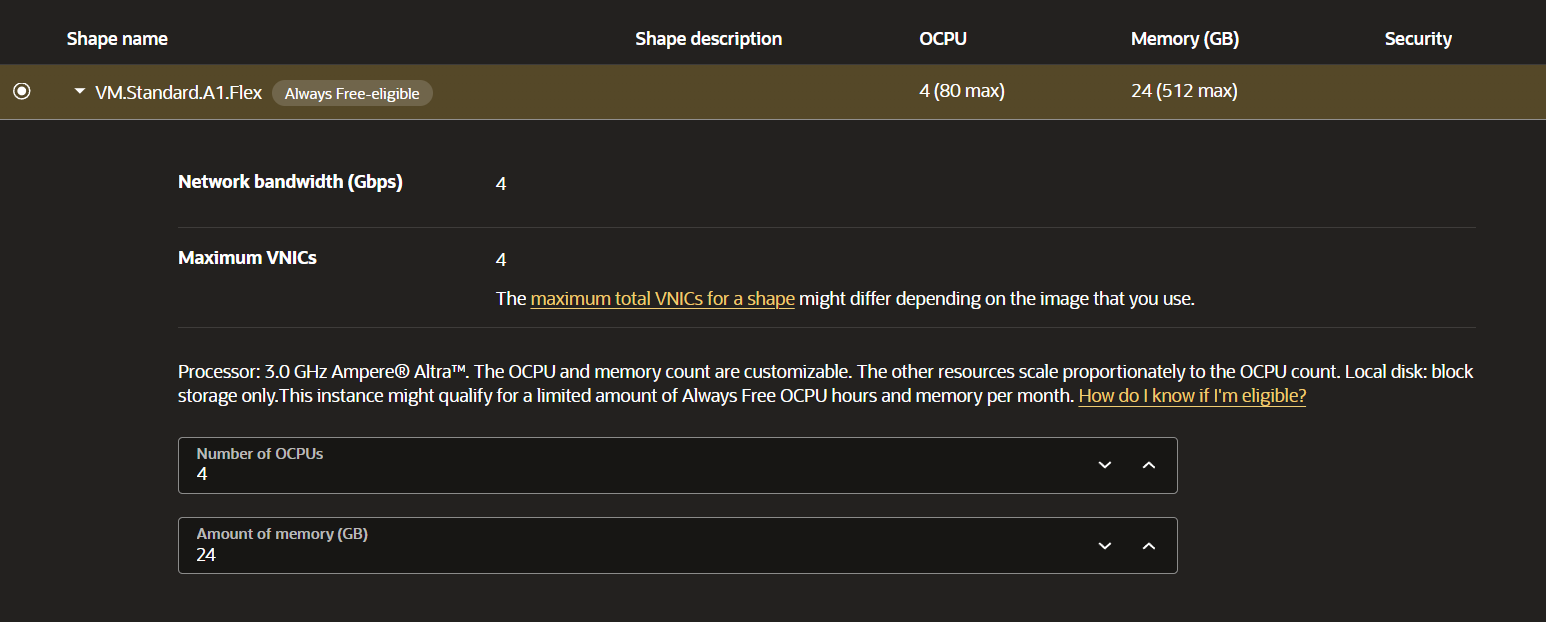
- Check the Box: Select the shape named VM.Standard.A1.Flex.
- Slide to Max: You will see two sliders.
- OCPUs: Slide this to 4.
- Memory (RAM): Slide this to 24 GB.
- Click "Select Shape": Save your choice. You will see the "Always Free Eligible" tag if you did it right.
You won't get charged for using this much resources; you can read it here.
When you hit "Create", you may see an error like "Out of capacity for shape VM.Standard.A1.Flex in availability domain AD-1". If you are seeing this, congratulations—you have officially run into the biggest hurdle of the Oracle Free Tier.
Don't panic. This is extremely common.
Because this deal is so good (4 CPUs / 24GB RAM for free), everyone and their bot army is trying to grab these instances. Oracle’s data centres in popular regions (like Ashburn, Phoenix, or Frankfurt) literally run out of free ARM chips periodically.
You can use these two methods to bypass the "Out of capacity" error.
- Method A (Change Rooms): In the "Placement" section of the setup page, try switching between different "Availability Domains" (like AD-1, AD-2, or AD-3) because the first room might be full while another still has space.
- Method B (Be Patient): Since server space opens up whenever other users delete their accounts, simply wait and try creating your instance again during off-peak hours (like late nights or weekends).
If these methods don't work, step 4 has the boss method that has the highest success rates.
Step 4: Upgrade Your Account to Pay-As-You-Go from Free-Tier
This is the "insider secret" that usually fixes the problem instantly.
Warning: Only do this if you trust yourself to set a Budget Alarm (as explained before).
- The Trick: Free Tier users are at the back of the line. "Pay As You Go" users are at the front.
- The Secret: If you upgrade your account to "Pay As You Go," Oracle treats you like a paying customer and often finds a server for you instantly.
- The Cost: $0. As long as you stay within the "Always Free" limits (4 OCPUs, 24GB RAM), Oracle will not charge you, even if you are on a "Paid" plan. The bill is calculated based on what you use, not who you are.
Follow these steps to Upgrade your account:
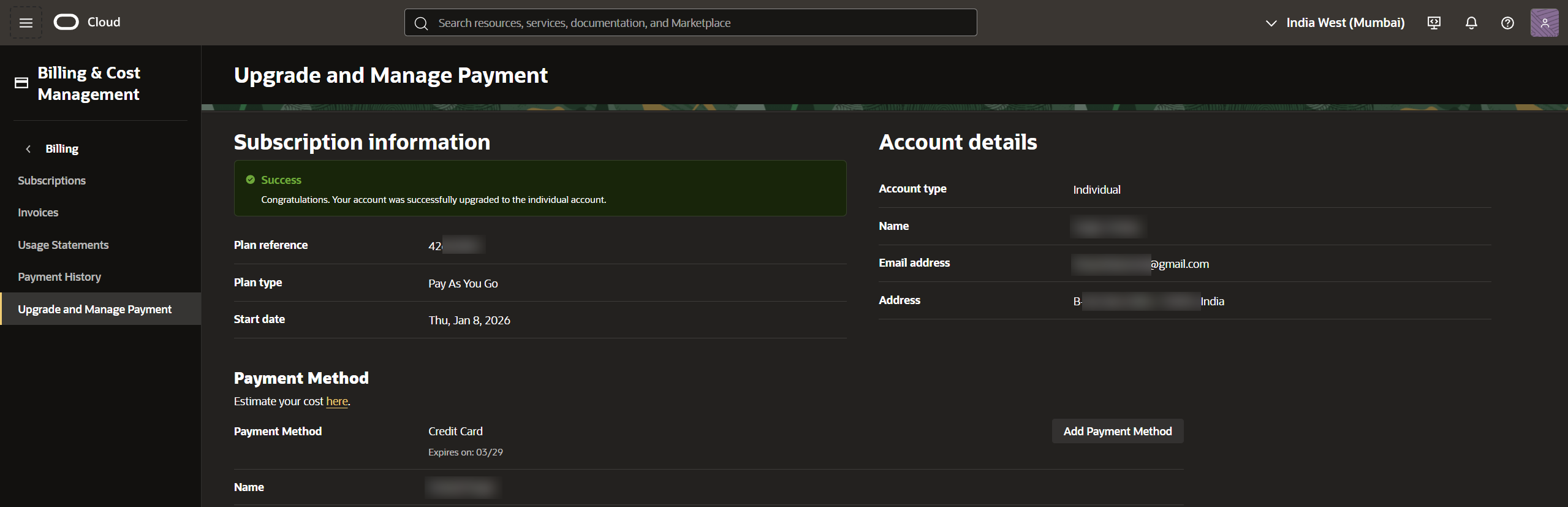
- Log In: Go to your Oracle Cloud Console.
- Open the Menu: Click the "Hamburger" icon (three lines) in the top-left corner.
- Find Billing: Go to Billing & Cost Management.
- Click Upgrade: Select "Upgrade and Manage Payment".
- Start the Process: You will see a section for "Pay As You Go." Click Upgrade.
- Verification (The Scary Part):
- Oracle needs to check if your card is real again.
- Heads Up: They will charge a temporary "Verification Hold" of about $100 USD (or equivalent in your currency).
- Relax: This is NOT a fee. It is a hold. They will refund/reverse it automatically (usually within 3-5 business days). You just need to have that money in your account for a moment.
- Confirm: Follow the prompts to finish the upgrade. It might take a few hours to days to process, literally.
Finally, retry Step 3 and you shall receive the 4 CPUs / 24GB RAM + 200GB Free-Tier storage capacity gift from Oracle Cloud. I already got the server just by following all the steps in order, good luck.
Now, whatever you do, do not terminate/delete the server, like ever and use it on your own without paying anything.
Oracle offers this to encourage developers to build on ARM architecture. Their desperation for adoption is your "Resourify" advantage. It’s not a trial; it’s a permanent, production-ready server that would cost you over $70/month anywhere else. Don't let those resources sit idle!
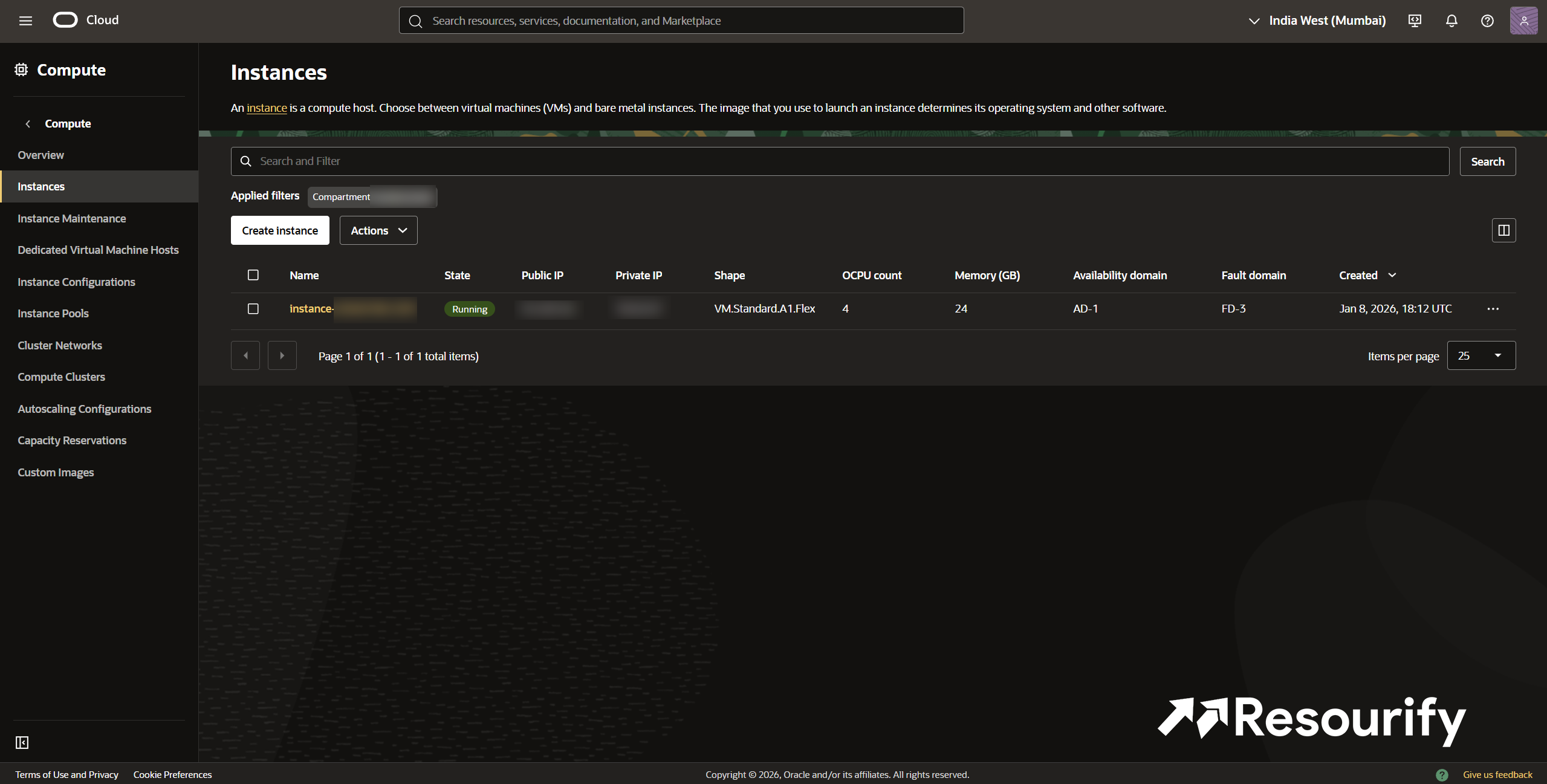
Key Benefits
- Massive Memory: 24 GB of RAM (Workbench) to run heavy applications comfortably.
- Powerful Processing: 4 Arm Ampere OCPUs (Brains) for multitasking.
- Large Storage: 200 GB of Block Volume storage (Digital Closet) to save your files.
- Two Databases: Access to 2 Oracle Autonomous Databases for storing organized data.
- Networking: 10 TB of data transfer per month (enough for a very popular website).
- IPv4 Address: Includes a public IP address so the outside world can connect to your server.
Eligibility
| Requirements | • Credit card (verification only)
|
|---|---|
| Criteria |
|
About Oracle Corporation
Oracle Cloud is a cloud computing platform that provides infrastructure, databases, AI services, analytics, storage, networking, and enterprise applications for businesses and developers. It enables users to build, deploy, and scale applications securely while benefiting from high-performance computing and globally distributed data centers. Oracle Cloud is widely used for hosting websites, running business workloads, managing databases, developing AI solutions, and supporting enterprise digital transformation.
Join our Telegram Channel
Get instant, real-time alerts whenever new student discounts and deals are posted.